
Design the Report From the Meeting You Already Had
August 19, 2026 · Tommy Puglia
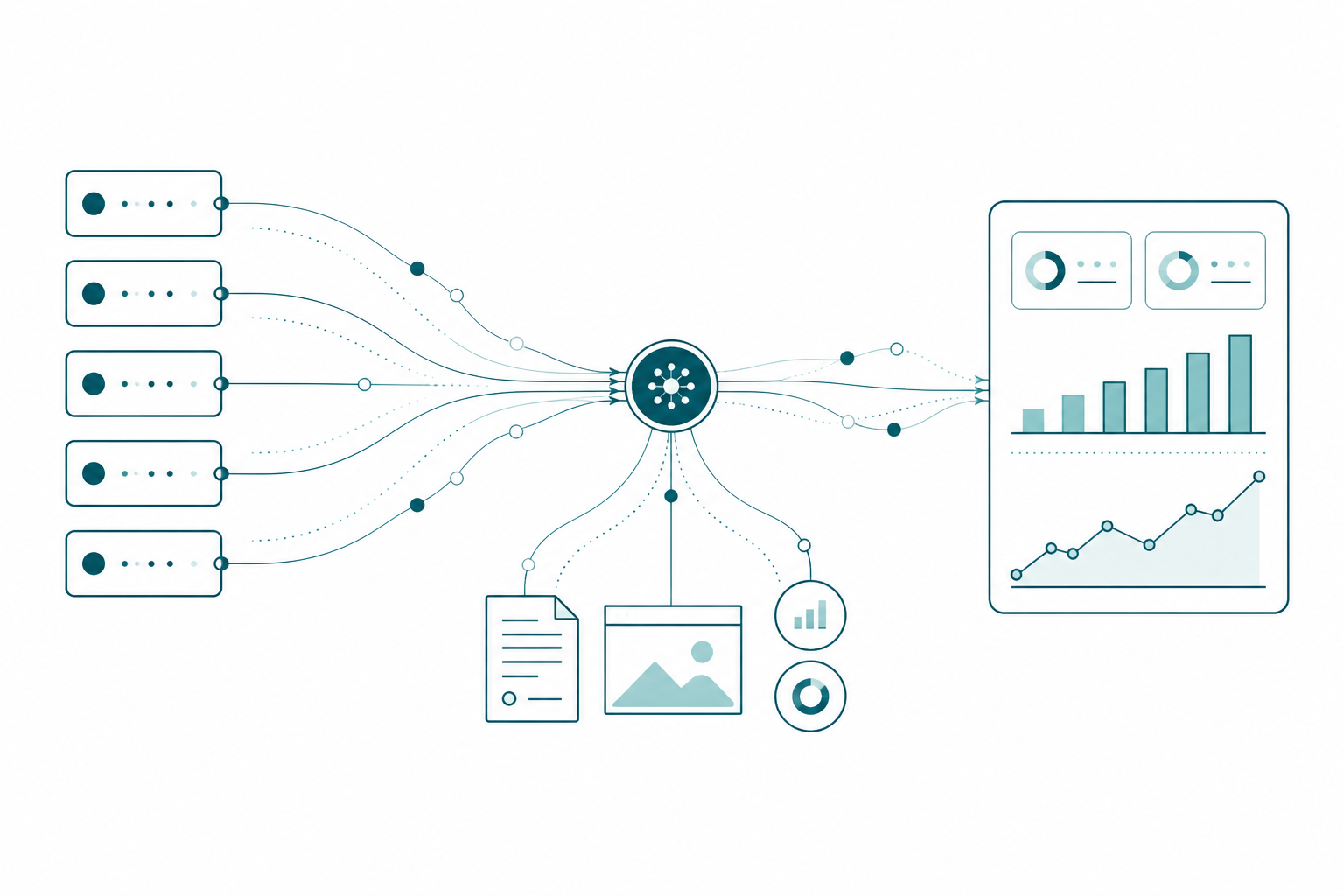
The first time I pointed an agent at a finished semantic model and said “here are the measures, go design a report,” I got something back. It was a report. It had visuals on it. It was also completely sporadic, in the sense that running the same request twice gave me two unrelated pages and neither one was something I would show a client.
So I ran it again with different inputs. Screenshots of a report page I wanted to echo. The transcript of my last stakeholder meeting. The handful of metrics that conversation actually surfaced. Same model, same agent, same skills. This time it did a nice job. It even handled the conditional formatting, which to this day is the most tedious clicking exercise in Power BI, and I don’t ship money visuals without it.
Nothing changed about the tooling between those two runs. What changed was the context. And that is the whole ballgame now that agents can genuinely author reports: the bottleneck moved off the tooling and onto whether you can hand over what you know.
The Measure List Is Inventory, Not a Requirement
Microsoft’s Skills for Fabric repo shipped skills that author PBIR files, capture screenshots, and iteratively refine report pages. I’ve used them and I’ve been genuinely astounded at how well they work. Not perfect. But two months before that, the honest answer to “can an agent design my report?” was no, and the reason “build a report with Copilot” never impressed anybody is that it was guessing at intent from a field list.
Worth knowing how the Power BI authoring plugin is actually split, because the split is the argument of this whole post:
powerbi-report-planninggathers requirements and locks a spec, before anything gets built.powerbi-report-designhandles the open-ended visual decisions: page archetypes, chart selection, palette.powerbi-report-authoringdoes the file mechanics, then validates and verifies what it rendered.
Microsoft put planning first and gave it its own skill. That should tell you something. The mechanics were never the hard part.
Here’s the thing nobody says out loud: a measure list tells an agent what is POSSIBLE, not what is wanted. Your model exposes forty measures. A good executive page shows three. Nothing in the TMDL tells an agent which three, or why the CFO cares about margin variance this quarter and not last quarter’s volume.
Think about hiring a caterer for a rehearsal dinner. You don’t hand them a photograph of your pantry. Forty ingredients on a shelf is not a menu, and a caterer who cooks from your pantry inventory makes something technically edible and completely wrong for the room. What they need is the occasion, the headcount, that the groom’s family is Sicilian, and that your aunt cannot have shellfish. Same ingredients, entirely different dinner. Your semantic model is the pantry. The request is not in there.
Your Last Meeting Is the Spec
So where does the real requirement live? In a meeting that already happened.
You sat with a stakeholder. They told you what was bothering them, what they get asked in the Monday leadership call, which number they don’t trust. Somebody said “and I want to see it like that report the ops team has.” All of that is specification, and most of us let it evaporate into a notepad and a vibe.
Three inputs turned my results around, and none of them are exotic:
- Screenshots of the page I wanted to echo. Design direction is visual. Describing a layout in prose to an agent is a worse channel than just showing it the thing.
- The stakeholder meeting transcript. Not a summary. The actual conversation, where the priorities and the grumbling both live.
- The metrics that conversation surfaced. Pulled from the transcript, then mapped onto real measures in the model.
That last one is why the conditional formatting worked. The agent didn’t invent a color scheme out of taste; the rule came from the business (“above this is good, below this is a problem”), and the business said it out loud in the meeting. Formatting stops being decoration the moment it encodes a threshold somebody actually owns.
Freeze It Into a Brief Before a Single Visual Exists
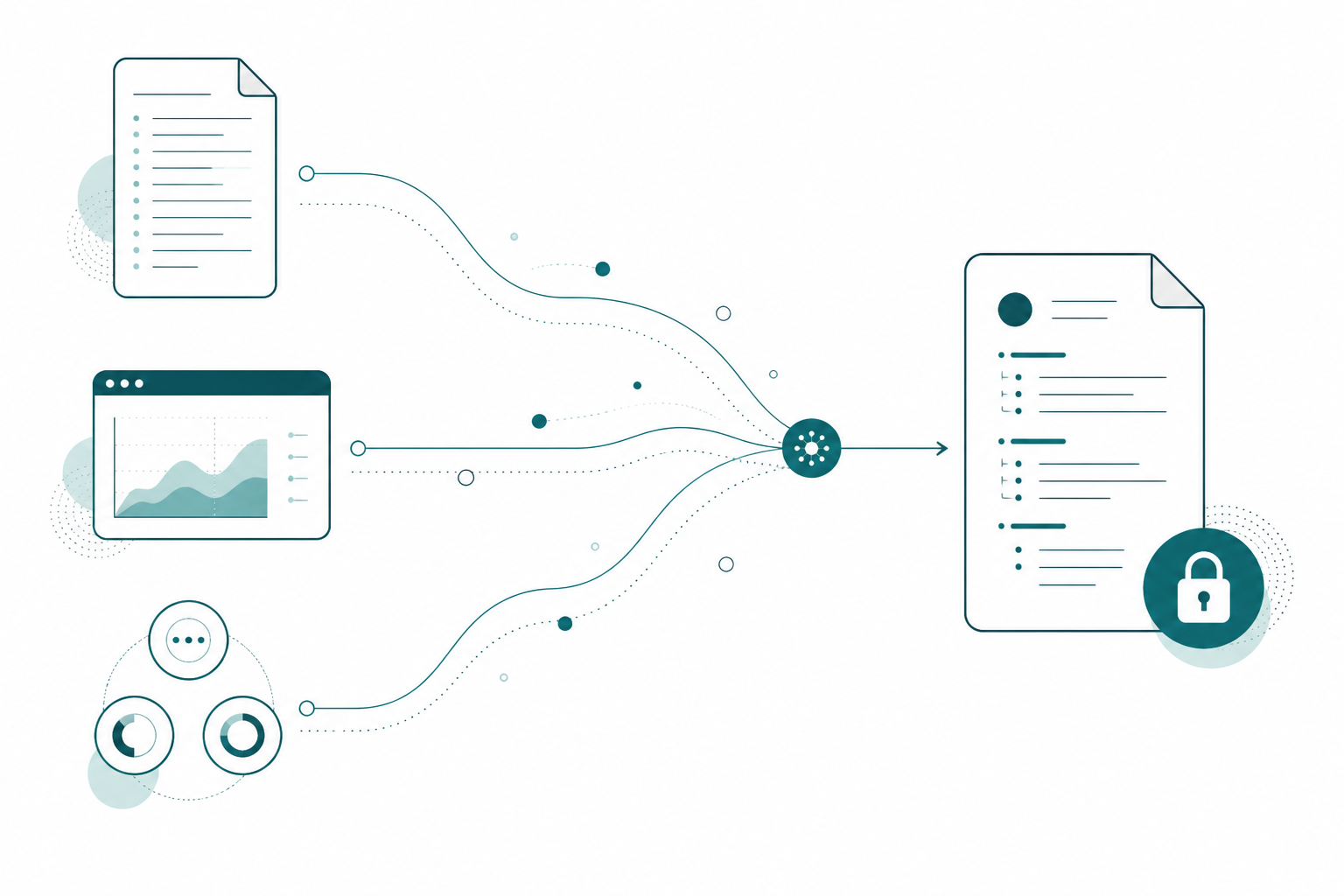
Feeding raw context into a chat window works once. Then it evaporates and you do it again next week, slightly differently, and you get a slightly different report. I hate redundancy.
What I do instead is consolidate that context into one brief and lock it before the agent touches a file. Not a second round of requirements gathering. A written spec of what the meeting already told me:
audience: who reads this and what they already know
purpose: the one outcome this report exists to drive

decision_questions:        # 2 to 5; answered at a glance
  - are we ahead of last year and where
  - which accounts are dragging margin
  - what changed since last week

pages:                     # one job per page
  - name: Overview
    intent: show whether we are on track this period and flag what is off
    serves: [are we ahead of last year and where, what changed since last week]
  - name: Margin Detail
    intent: locate where margin is leaking by account and product
    serves: [which accounts are dragging margin]

design_identity:
  tone: quiet analytical
  signature:
    accent: single accent reserved for the focus measure
    kpi: value over target, variance shown as a small inline figure
    titles: subject on the page, differentiator on the visual
    spacing: equal gaps and margins arithmetically derived

delivery_target:
  surface: Fabric workspace app
  page_size: 1280x720
  mobile: not required
The decision_questions block is the part that earns its keep. Every page and every visual has to trace back to at least one of them. If a visual serves no decision question, it is decoration and it gets cut, and now that judgment is a rule the agent can apply instead of a taste call I have to make forty times.
Then it gets frozen. Revising words is cheap. Rebuilding bound visuals is expensive. If scope changes later, I reopen the brief and amend it rather than letting the agent quietly drift the report, because a drifting report is how you end up with a page that is just “more charts.”
This is the same move powerbi-report-planning makes when it refuses to author anything until a spec is approved. The only difference is where the spec comes from. That skill will happily interview you to build one, and I would rather not sit through an interview about a conversation I already had. So I bring the meeting instead.
Notice what this brief really is. It’s the meeting, written down in a form both an agent and a human can execute against. Which means it also answers the question I keep getting about where model and report context is supposed to live: it lives in an artifact you keep, next to the project, in source control. Not in a chat history.
Don’t Let the Agent Hand-Write the JSON
Here’s the second half, and it’s the one people skip because the first half feels like enough.
Microsoft’s report skills are good, and they are also large markdown trees with sub-skills, and every one of those tokens goes into the context window before your report gets built. Worse, if the agent is authoring visual JSON from memory, it is spending reasoning on a file spec instead of on the thing you actually hired it for.
The skills already know this, which is why they don’t ask the model to recall PBIR. They shell out to a CLI. @microsoft/powerbi-report-authoring-cli installs as powerbi-report-author, and two habits from it are worth stealing even if you never install a single skill: look the spec up, and validate constantly.
# look it up instead of remembering it
powerbi-report-author catalog list
powerbi-report-author catalog describe cardVisual
powerbi-report-author formatting describe-object cardVisual
powerbi-report-author formatting search "background"

# then check the work every batch, not at the end
powerbi-report-author validate "Sales.Report"
Lookup is not pedantry. These are the ways a hand-written visual fails, and not one of them announces itself:
- A role name that doesn’t exist on that visual type. The field is silently ignored and the visual renders blank.
cardVisualtakesData; the legacycardvisual tookFields. Carry the old name over and you get an empty card with no error to chase. - A property set on the wrong object. It validates clean. It renders unchanged. You find out from a screenshot, or you don’t find out.
- A deprecated visual type.
multiRowCard,map, andfilledMapall still write perfectly well and are all the wrong answer now.
Validation is the cheaper half of that. Run it after every batch, not at the end, because a broken field reference surfaces on the step that caused it instead of four steps later when you can’t tell which change did it. It also gates the next step: invalid PBIR gets rejected on reload anyway, so you may as well hear it from the validator.
Where I go further than the skills is wrapping the mutations themselves, so the agent never touches a property tree at all:
pbir new report "Sales.Report" -c "MyWorkspace/Sales.SemanticModel"
pbir pages rename "Sales.Report/Page 1.Page" "Overview"
pbir model "Sales.Report" -d                       # discover fields before binding
pbir add visual kpi "Sales.Report/Overview.Page" --title "Revenue"
pbir visuals sort "Sales.Report/Overview.Page/Revenue.Visual" -f "Sales.Revenue" -d Descending
pbir validate "Sales.Report"
A command like add visual kpi takes a type, a position, a title, and a binding, and it owns the JSON. The agent passes parameters. It never needs to know the shape of a visual container, and I never need to review a hand-written property tree to find out it put a border on the wrong object.
That changes where the agent spends its effort, which is the actual win. It stops thinking about file format and starts thinking about what the page looks like, where the KPIs go, what the general layout should be. That’s the work I want it doing, because that’s the work the brief told it how to do.
One more rule keeps this from rotting: push formatting into the theme, not into visuals. Static formatting belongs in the theme, and conditional formatting belongs in extension measures returning theme sentiment tokens. Then variance columns carry the color and nothing else does, because formatting everything means formatting nothing. The practical payoff shows up the first time you re-theme a report and discover that per-visual color overrides beat the theme every time, so the “one line” change turns into a sweep through every file on disk.

What the Power BI Desktop Bridge Actually Does
There’s a mental model worth correcting here, because I had it wrong too. The Power BI Desktop Bridge is not an agent clicking around inside Desktop. It’s a local IPC server running inside the Desktop process, reachable over a named pipe scoped to that process ID, speaking JSON-RPC. Local only. There is no remote surface, which is the first thing your security people will ask.
The surface is small enough to list:
bridge.manifesttells you what this build supports. Call it first instead of assuming.application.state.get/v1tells you which file is open and whether it has unsaved changes.file.reload/v1reloads from disk, with a flag for whether to pull the model definition too.report.snapshot.capture/v1returns a PNG of one page, by PBIR page ID.
That’s it. Everything else is your agent editing PBIP files on disk. Desktop is the renderer and the camera. What the Bridge actually killed is the close-and-reopen dance, which is a bigger deal than it sounds: before this, every single iteration cost you a Desktop restart, so nobody iterated. An agent that can render and then look at what it rendered is a different animal from one that writes files and hopes.
Turning it on takes a minute and trips people up because of the name. It’s the June 2026 build or later, then File → Options → Preview Features, and the toggle you’re looking for is not called Desktop Bridge. It’s “Enable external tool access to Power BI Desktop through secure local APIs.” Restart afterward.
From there the CLI is @microsoft/powerbi-desktop-bridge-cli, which installs as powerbi-desktop:
powerbi-desktop status                                   # which instance, which file, unsaved changes?
powerbi-desktop reload --pid 12345
powerbi-desktop screenshot --pid 12345 --output overview.png
powerbi-desktop screenshot-all --pid 12345 --output-dir .\shots
Four things I learned the expensive way, running this against real client work:
- Check
statusbefore you reload. If the instance reports unsaved changes, stop and let a human save or discard. Reloading over someone’s in-flight edits is a bad afternoon. - Never hit Ctrl+S between the agent’s write and the verify run. Desktop’s Save pushes its in-memory definition over the
definition/folder on disk, which silently rolls back everything the agent just wrote. The order is: human saves first, agent writes, then reload. Get it backwards once and you will spend an hour re-committing files you already committed. - Reload is the report layer. Model and TMDL changes ride a different path, and Desktop’s Power Query layer does not learn about model edits made behind its back.
- Hash your screenshots. Two byte-identical PNGs across two runs does not mean nothing changed, it usually means your write path stopped reaching disk while still reading back correctly. That one cost me a morning.
Then wrap the whole loop in a script. Mine lives in a batch file, and it does one thing: validate, reload, screenshot every page, drop the PNGs in a folder. The agent doesn’t get to improvise the verification step, because verification is exactly the step an agent is most tempted to claim it did. If the loop is a script, “did you check?” has a file-system answer.
This is also where governance quietly enters. The skills install their CLIs globally by default, which means a client project’s tooling lands on your whole machine. GitHub Copilot agent hooks let you intercept that and rewrite a global install into a project-local dependency, so the tools stay scoped to the repo they belong to. Same instinct as a virtual environment, and worth doing before your second project rather than your fifth.
My working loop still splits in two. When I’m building and validating measures, I keep a live connection open so the agent can run a query and confirm there are the number of rows I expect, because an agent that can only edit measures can’t tell you whether the measure is right. When I move to design, the Bridge takes over: it edits, reloads, shoots the page, and looks at it.
That looking part is not a formality. I have had the documented guidance tell me to use one visual type while the screenshot showed it rendering completely empty in the build I was on. The docs weren’t lying and neither was the screenshot. That disagreement is the entire reason the verify step exists, and it’s why “the agent said it built it” and “the agent built it” are still two different claims.
Brief in, commands out, screenshot back, compare, refine. That’s the whole loop, and every piece of it exists today.

Run It This Week
- Pull the transcript from your last stakeholder meeting. Not your notes. The transcript. Pull out every metric anyone named and every complaint anyone made.
- Write the brief. Audience, purpose, two to five decision questions, one job per page. Fifteen minutes, and stop when the decision questions are honest.
- Screenshot the page you want it to echo. An existing report of yours, a page from another team, whatever sets the direction.
- Turn the Bridge on. June 2026 build, Preview Features, “Enable external tool access to Power BI Desktop through secure local APIs,” restart. Then run
powerbi-desktop statusand confirm it can see your open file. - Get a deterministic command layer in place so the agent calls a command per visual instead of authoring JSON, and validate after every change.
- Put the verify loop in a script. Validate, reload, screenshot every page. Two lines of batch file buys you a verification step the agent cannot skip.
- Delete a visual that serves no decision question. Do it on a report you already shipped. That’s the fastest way to find out whether your brief has teeth.
Takeaways
- Agents can author report pages now. The measure list was never the requirement, so pointing one at a model and saying “design something” gets you a page nobody asked for.
- The specification you need already exists in the stakeholder meeting you already had. Transcript, reference screenshots, and the metrics that came up beat any amount of prompt polishing.
- Lock that context into a design brief with two to five decision questions before a single visual is built. Anything that serves no decision question is decoration.
- Let commands own the file spec. The agent should be reasoning about layout and KPI placement, not about visual JSON, and it should look role names and properties up rather than recall them.
- The Desktop Bridge is a local server that reloads and screenshots, nothing more. It matters because it lets the agent see what it rendered, which is the difference between claiming a page works and knowing it does.
- Wrap validate, reload, and screenshot in a script. Verification is the step an agent is most likely to skip and most likely to say it didn’t skip.
Key takeaway: this week, take the transcript of your last stakeholder meeting and turn it into a five-line design brief with the decision questions written down. That file, not a better prompt, is what makes the next agentic report worth shipping.
The uncomfortable part of all this is that agentic report design rewards the practitioners who were already good at requirements. The tooling caught up; the discipline is still on us. If you’re building this loop out for your own team, keep the conversation going with us on the Explicit Measures podcast, and subscribe at PromptingBI for more.